Assets
Assets are the key driver within Assets | Lapine Studios. An asset describes a trackable resource that may be a logical entity, such as an account or cloud-based resource, or a physical object such as a laptop, car, or keycard.
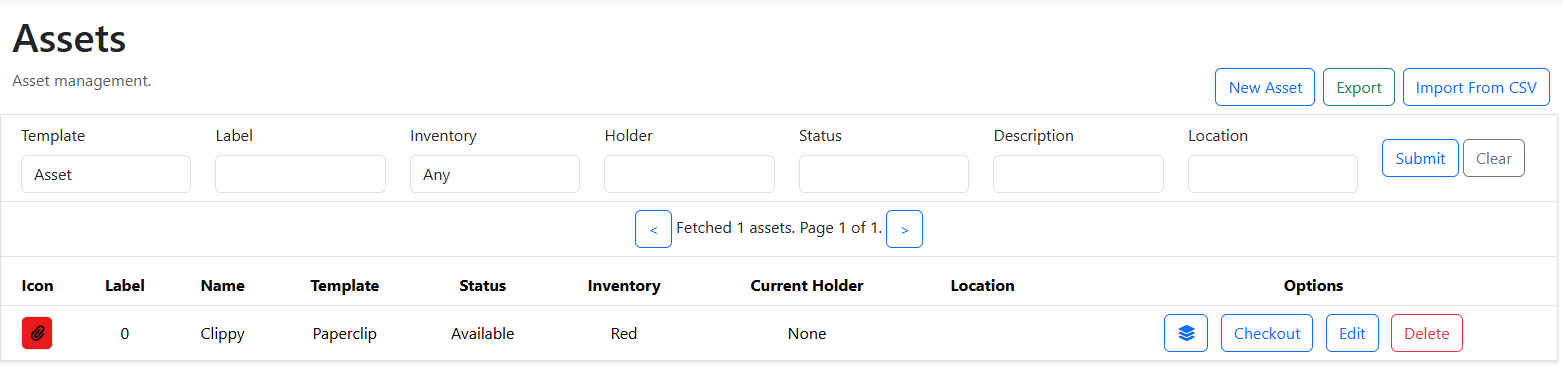
Attributes
Assets have the following key attributes.
| Attribute | Description |
|---|---|
| Index | A company-unique positive integer that uniquely identifies an asset within an organisation. This is fixed within Assets and can never change. |
| Label | A company-unique string that is generated in using the company asset label schema. |
| Name | A friendly name for the asset. |
| Inventory | An inventory that groups the asset within a logical group. |
| Template | The category or type of the asset. |
| Description | A short description of the asset, up to 256 characters. |
| Status | A key word that describes the immediate state of the asset, up to 64 characters. |
| Location | A short description of the location. This is an uncontrolled string field up to 128 characters. |
| Metadata | A JSON document that contains custom data about the asset. This may have nested fields, but all unique fields set by Assets internally are strings by default. |
| Holder | A user of Assets who is the designated custodian of the asset. |
An asset must always belong to one inventory and one asset template at any given time. Assets | Lapine Studios ensures that an asset will have a unique label.
Tips for Asset Management within Assets
Discourage Deleting Assets
Assets is designed to operate as a register as well as an archive of historical actions. We consider deleting assets an anti-pattern, and recommend that they remain within the system with a status to mark them as decomissioned or destroyed. Where the deletion of assets is required, this may allow for a misconfigured environment to back-fill asset labels, resulting in a collision with historical assets.
Using Reminders
Automated reminders can be created for email updates when an action is used to update an asset.
Managing Holders and Owners
The holder of an asset within Assets must be a user within the platform. For users that do not immediately use the platform or have a representation within it, a unique identifier, such as an employee number or name can be used as a metadata field within the asset.
Asset Guides
The following sections walk through how to perform asset operations within Assets.
How to Create an Asset
The following steps walk through creating an asset within Assets:
- Navigate to the 'Assets' page.
- Click on the 'New Asset' button.
- Select the appropriate template and inventory. You may optionally assign a holder, provide a friendly name to identify the asset, a description, a location string, and designate up to 50 duplicants of the asset.
- Click on the 'Create' button.
How to Edit an Asset
The following steps walk through editing an asset in Assets:
- Navigate to the 'Assets' page.
- Find the appropriate asset. You may need to use the filters or a query on the 'Query' page to find the appropriate asset.
- Click on the 'Edit' button.
- Change any values you wish to apply to the asset.
- Click the 'Edit' button. If you do not see the edit button, you may not have the appropriate permissions to edit the asset.
How to Delete an Asset
The following steps walk through deleting an asset in Assets:
- Navigate to the 'Assets' page.
- Find the appropriate asset. You may need to use the filters or a query on the 'Query' page to find the appropriate asset.
- Click on the 'Delete' button. If you do not see the delete button, you may not have the appropriate permissions to delete the asset.
How to Query Assets
The following steps walk through querying assets in Assets:
- Navigate to the 'Query' page.
- Construct an Asset Query Language query to isolate the assets you wish to view.
- Click on the 'Submit' button to the right of the query or press the 'Enter' key on the keyboard.
How to Edit or Delete Multiple Assets at a Time
The following steps walk through deleting or editing multiple assets in Assets:
- Navigate to the 'Query' page.
- Construct an Asset Query Language query to isolate the assets you wish to edit.
- Click on the 'Edit' or 'Delete' button to the right of the query.
- To edit the assets, change any values you wish to apply to the assets.
- Click the 'Edit' button.
How to Import Assets
Assets allows you to import assets into Assets using a comma separated variable (CSV) file. Important: Note that the only way you can cause Assets to hold conflicting records within Assets is by providing labels that overlap with Assets' internal label schema.
Importing Assets with Labels Conflicting with Assets' Company Label Schema
If you are migrating assets into Assets and want to keep an existing label schema while also using the templates features provided in Assets, you must edit the asset template and increase the internal index of the asset template to be greater than the largest imported asset within Assets. You will also have to supply the correct template name for the asset within the 'template' column and the correct index within 'templateindex'. The templateindex provided must not have already been taken within Assets. Similarily, if you internally track a numerical unique identifier for all assets witihn the company, you should increment the company asset index and provide the 'companyindex' field. If you do not perform these steps correctly, there will be a mismatch between your existing asset labels and Assets' representation of your asset which may result in conflicts between older records and the state of Assets. For this reason we recommend migrating all assets into Assets during onboarding.
We strongly recommend that you create a new, different schema in order to avoid conflicts with existing labels.
Asset Import Document
Create a valid comma separated value (CSV) document containing the asset information you would like to import into Assets. Assets accepts the case-insensitive column names in the following table. All columns are optional, but at least one column is required.
| Column | Description |
|---|---|
| Label | The desired label for an asset. This cannot conflict with an existing label within assets and should not conflict with the schema designated within Assets. Use of this field is discouraged and may result in a collision within Assets if improperly used. If you supply a Label field, but do not supply a CompanyIndex or TemplateIndex, the asset will be imported and its label will be marked as custom. Assets will not collide with it, but we do not recommend this approach. |
| Name | A friendly name for looking up an asset or otherwise identifying it. |
| Template | The name of the template the asset will belong to. This must match exactly. |
| TemplateIndex | The index witihn the template to insert the asset at. The requested index must be both available and before the index head of the template. If either of these conditions fail the asset will be silently dropped. If not provided, this will use the index head of the template and increment it. |
| CompanyIndex | The index witihn the company to insert the asset at. The requested index must be both available and before the index head of the company. If either of these conditions fail the asset will be silently dropped. If not provided, this will use the index head of the company and increment it. |
| Inventory | The name of the inventory the asset will belong to. This must match exactly. |
| Description | A description |
| Metadata | A Base64-encoded JSON document that for additional data tracked for the asset. Non-compliant JSON documents will be silently dropped. |
The following steps walk through how to import assets into Assets:
- Navigate to the 'Assets' page.
- Click on the 'Import From CSV' button. If you do not see this button you do not have the required roles.
- Select the file from the file system. Note that it must be a strict 'CSV' format. Excel variants, and any other file type will likely cause unexpected behaviour.
- Click on the 'Load' button.
How to Export Assets
The following sets of instructions walk through exporting all the assets from within Assets, or exporting a subset of assets.
Exporting All Assets
The following steps show you how to export a CSV of assets from Assets:
- Navigate to the 'Assets' page.
- Click on the 'Export' button.
Exporting a Subset of Assets
The following steps walk through exporting a selection of assets using a query: