Inventories
An inventory in Assets | Lapine Studios is a logical group of assets. Inventories can be managed on the Inventories Page.
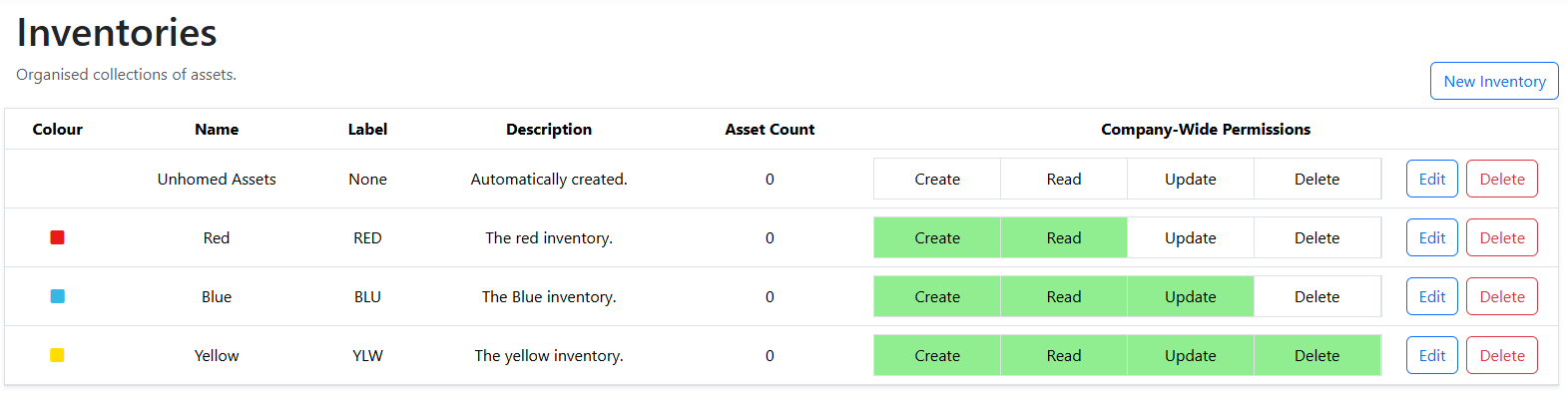
Attributes
Inventories within Assets have the following key attributes.
| Attribute | Description |
|---|---|
| Index | A company-unique positive integer that uniquely identifies an inventory within an organisation. This is fixed within Assets and can never change. |
| Name | A mandatory field. A friendly name for the inventory. This must be unique. |
| Description | A short description of the inventroy, up to 256 characters. |
| Label | A short string or nickname for the inventory that allows it to be rendered shorter in a company asset label schema. If provided, the label must be unique within the company. |
| Colour | A colour to identify asset icons by. |
Permissions
Access to assets is controlled at the inventory level. Inventories can grant access to their assets either via groups or through their innate company-wide permissions.
Permission Types
The following permissions can be applied to inventories.
| Permission | Description |
|---|---|
| Create | Allows users to create assets in or move assets into the target inventory. |
| Read | Allows users to see assets within the inventory. |
| Update | Allows users to change any element of, but not permanently delete assets. |
| Delete | Allows users to permanently delete assets within the inventory. |
Note that if a user has the ability to 'Create' on an inventory with greater permissions it is possible for them to move assets into that inventory, then use the greater permissions to change them.
Company-Wide Permissions
Company-wide permissions are innate to an inventory and are granted to all users within the organisation.
Default Inventory
The 'Unhomed Assets' inventory is created automatically when a company is created. The unhomed assets inventory cannot be deleted but can be edited. When an inventory is deleted with assets inside of it, they are automatically moved to the 'Unhomed Assets' inventory.
Inventory Guides
How to Create an Inventory
The following steps walk through creating an inventory:
- Navigate to the 'Inventories' page.
- Click on the 'Create' button.
- Enter the values you wish the inventory to have. The mandatory value for an inventory is a unique name.
- Click the 'Create' button.
How to Edit an Inventory
Note: Editing the components of an inventory that are used in label generation may invalidate existing asset labels.
The following steps walk through editing an inventory:
- Navigate to the 'Inventories' page.
- Find the inventory you wish to edit in the listing.
- Click on the 'Edit' button.
- Change any values you wish to apply to the inventory.
- Click the 'Edit' button.
How to Delete an Inventory
The following steps walk through deleting an inventory:
- Navigate to the 'Inventories' page.
- Find the inventory you wish to delete in the listing.
- Click on the 'Delete' button.